Install GD.findi MS
System Requirement
| OS | Windows10 (64bit) 2004 or later |
|---|---|
| Processor | Intel or AMD x86-64 processor (Core i5 recommended) |
| System Memory | minimum of 8GB (16GB recommended) |
| Monitor resolution |
1280 x 720 (1920 x 1080 recommended) Notice: When scaling ratio is 100%. |
| Internet connection | neccessary (10 Mbps or better recommended) |
| Device | Computer mouse with scroll wheel |
Before the first usage
Please set your password before the first usage of GD.findi MS v10.
Follow the instructions below to set your password.
Open the Registration page.
Open the Registration page
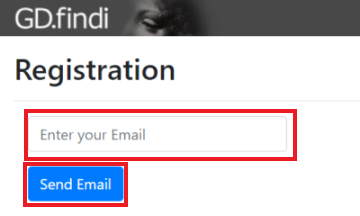
Enter the email address you provided when you applied for your GD.findi account, and click the "Send Email" button.
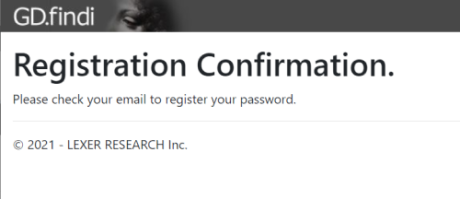
Then, the Registration Confirmation message will appear.
An email titled "Register your password" will be sent to your email.

In the body of the email please find the above sentence and click on “here” to open the link in a web browser.
Then, the Register your password page will appear.
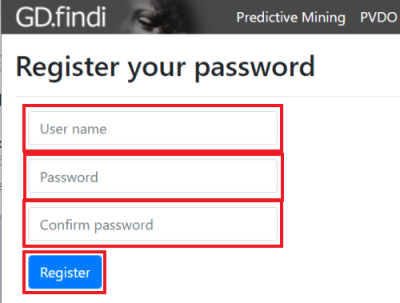
Please enter the following information.
- User name:GD.findi username
- Password :GD.findi password
- Confirm password:Enter the same password
Reset password confirmation message will appear after you set up the password.
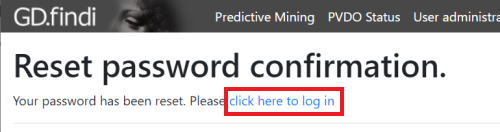
Please click on “click here to log in” to confirm that you can log in into GD.findi.
The login window will appear

Enter your username and password and click the "Login" button.
Once you have successfully logged in, you will see the message "Hello" in the upper right corner of the page.
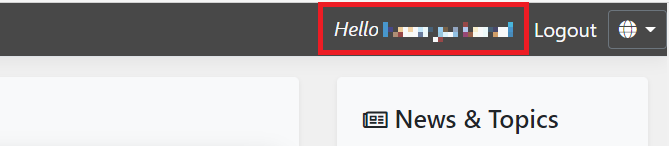
Password registration is complete.
How to install
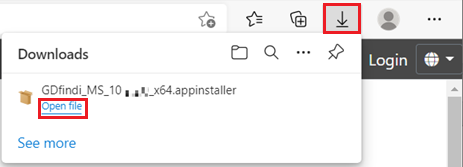
Click "Download" button in the left pane of this page. Then the installer file will be downloaded.
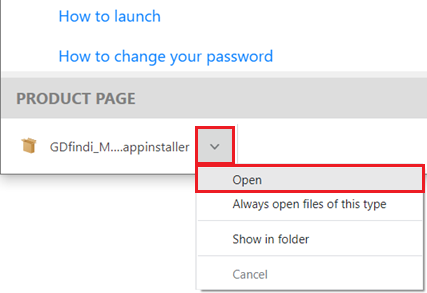
Open the downloaded file to open App Installer".
Microsoft Edge
Chrome
Firefox
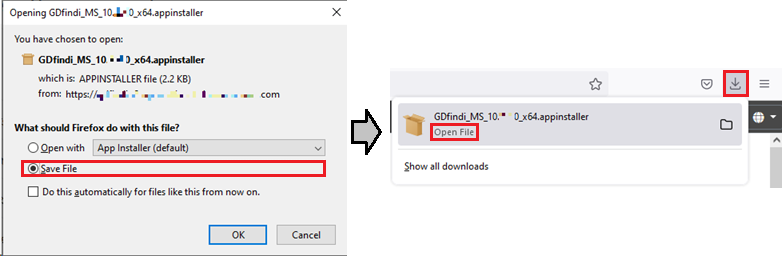
The following dialog appears.
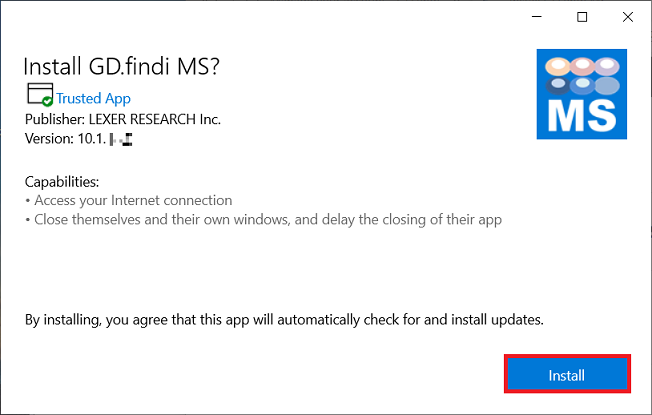
Uncheck "Launch when ready" then click "Install" button.
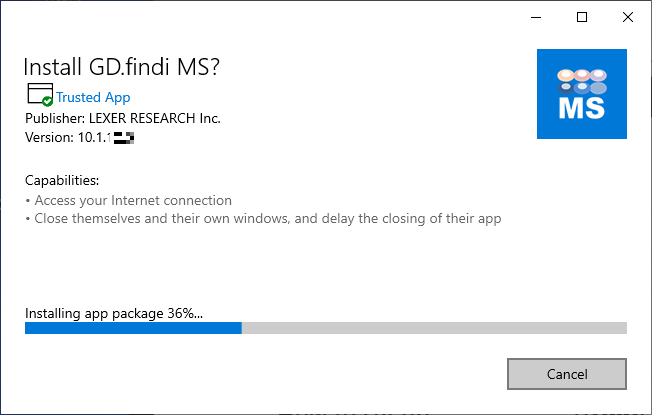
The installation process will be started.
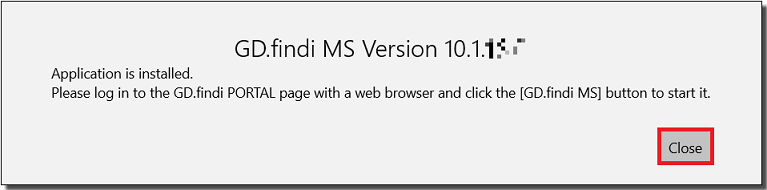
The following dialog appears when completing the installation.
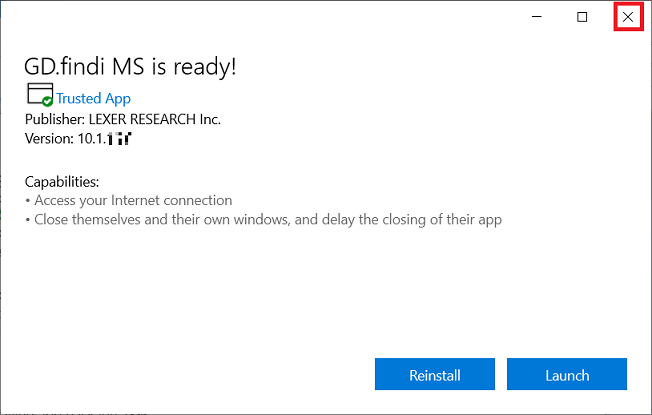
Close the dialog with clicking "X" button at the upper right corner.
How to update
Click "Download" button in the left pane of this page. Then the installer file will be downloaded.
Open the downloaded file to open App Installer".
Microsoft Edge
Chrome
Firefox
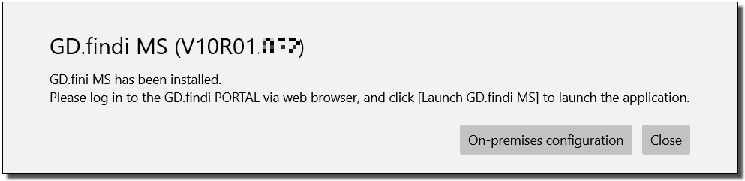
Close the dialog with clicking "X" button at th the upper right corner.
The following dialog appears.
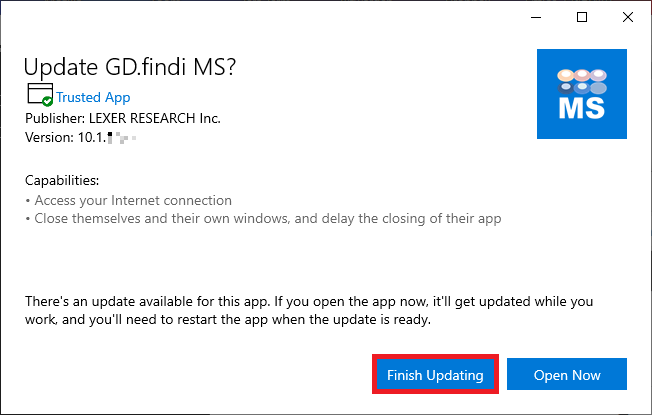
Uncheck "Launch when ready" then click "Install" button.
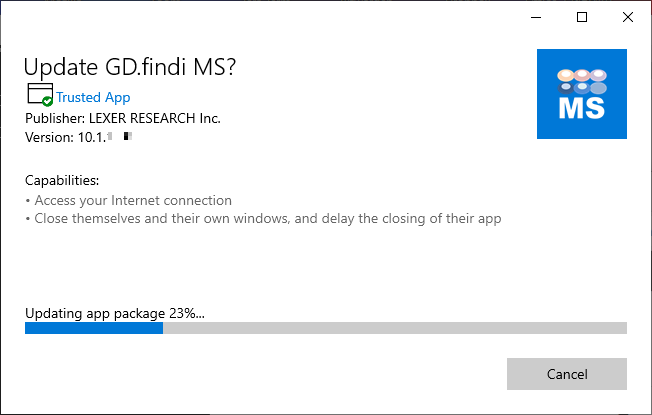
When the update is complete, the following window will appear.
Click on the "Close" button to close the window.
When installation failed
Determine the version of Windows on your computer
Please follow the instructions here
here
to check if your Windows OS is Windows 10 (64bit) 2004 or later.
Please update to the latest version of Window OS.
Using the Offline installer
Depending on the security settings of your computer and network, the following problems may occur during installation.
- Installation does not proceed.
- Error message appears during installation.
How to use the Offline installer
1. Click on the link below to download the installer zip file.
Download Offline installer
2. Unzip the downloaded zip file
"GD.findi_MS_10.2.xx.0_x64_offline.zip"
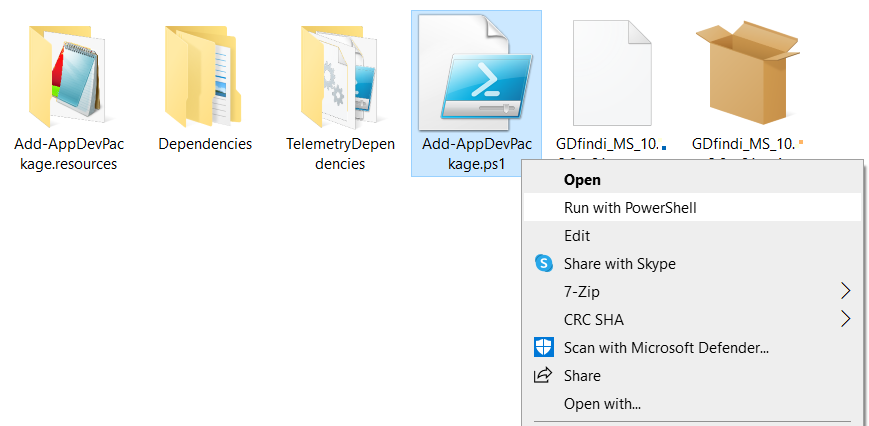
3. Right-click on the file "Add-AppDevPackage.ps1" contained in the extracted folder and select "Run with PowerShell".
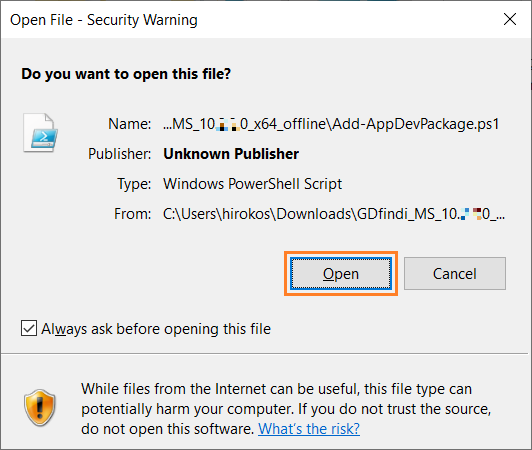
* When you get the following diaglog, please click "Open".
4. When the message "Do you want to change the execution policy?" Enter "Y" and press enter.

5. The installation is complete when you see the message: “Success: App installed successfully.”

How to launch
Open GD.findi PORTAL
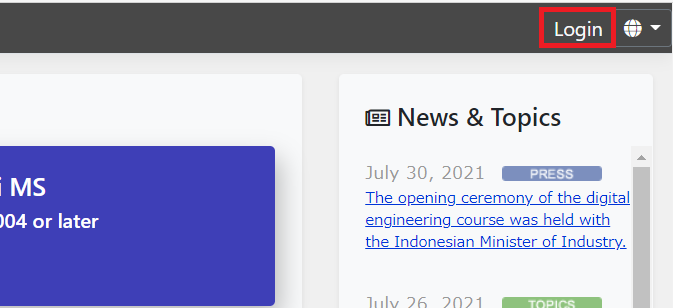
Click "Login" button at the upper right corner.
Log in dialog will appear.
Click "Log in" button after input your user ID and password.
The following screen will appear.
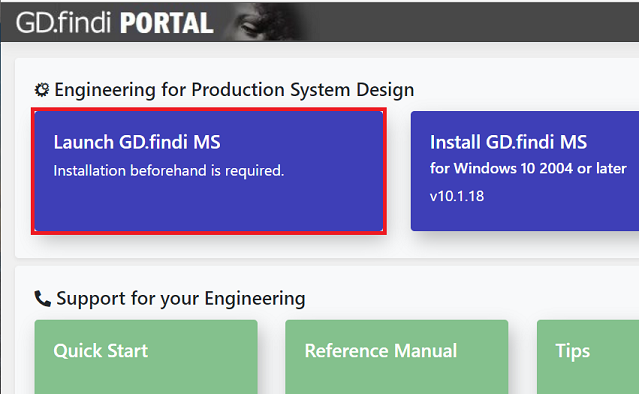
Click "GD.findi MS click to launch" button, then the following message will appear.
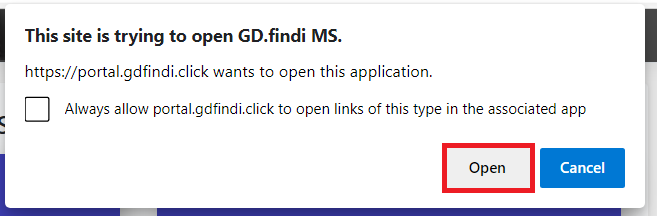
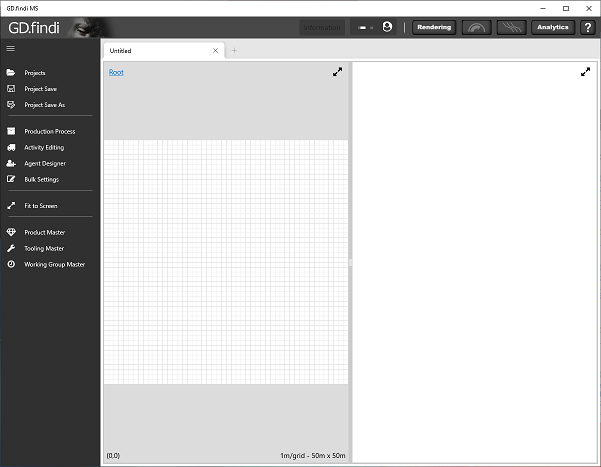
Click "Open" button, then GD.findi MS will be launched.
How to change your password
Open the setup page
The following the page will appear.
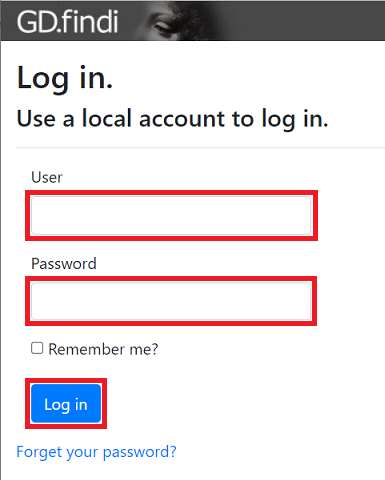
Enter your GD.findi username and password, then click the "Log in" button.
The Change Password page will appear.
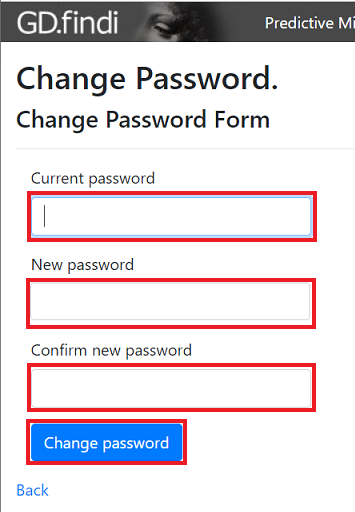
Please enter the following information.
- Current password: current password
- New password: New password
- Confirm new password: Re-enter the new password for confirmation
If the email address is correct, then please click on the "Confirm" button.
If the email address is not correct, click on the link "Change" to change it.
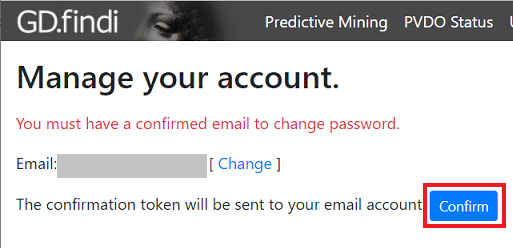
You will receive a confirmation email. Click on the link in the email to open in a web browser. A message "Confirm Email" will appear.
How to reset your password
Reset your password
Open Configuration site
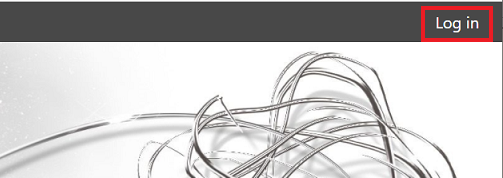
Click "Login" button at the upper right corner to log in.
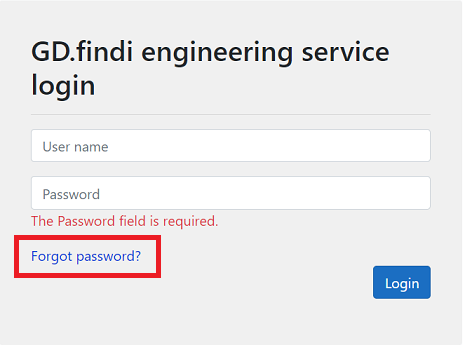
Click "Forget password?" button at the bottom of this screen.
The following screen will appear.
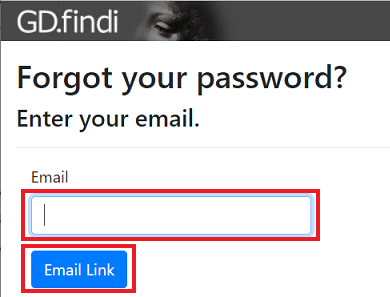
Enter your email address and click "Email Link" button.
The following screen will appear.
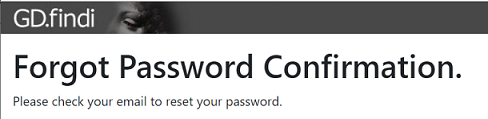
The system will send an email to your email address.
Click the link in the email and open with a Web browser.
The following screen will appear.
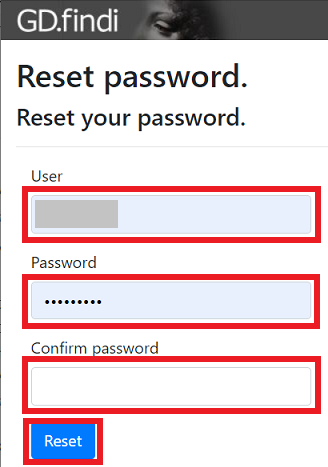
Click "Reset" button after you enter your new password and confirm password.
When the following screen appears, you have successfully reset your password.
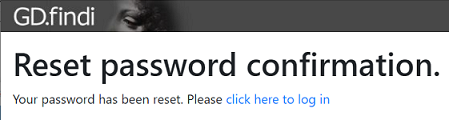
How to change your email address
he instruction for changing the email address is as follow.
Open the setup page
The following page will appear.
Enter your GD.findi username and password, and click the "Log in" button.
The Change Email page will appear.
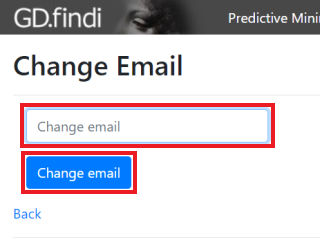
Enter your new email address in the "Change email" field and click the "Change email" button.
"Manage your account" page will appear.
Make sure that your email address is correct and click the "Confirm" button.
You will receive a confirmation email titled "Confirm your account".
Click on the link inside to open in a web browser.
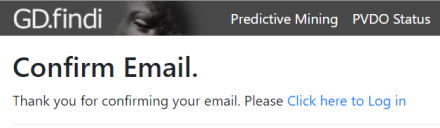
The Confirm Email page will open.
How to uninstall
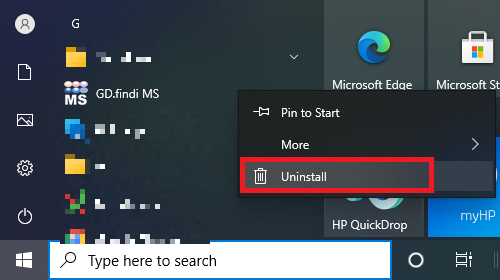
Click Windows Start button.

Right click "GD.findi" in the menu
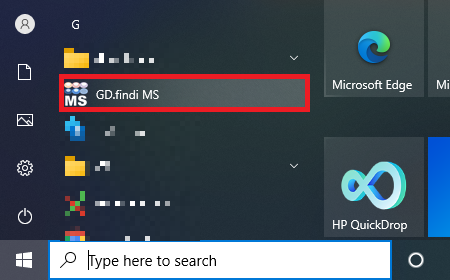
Click "uninstall" in the menu